Tvoj prvi model
Napomena
In this tutorial we refer to the different parts of the gaphor interface: Model Browser, Toolbox, Property Editor.
Although the names should speak for themselves, you can check out the Getting Started page for more information.
Once Gaphor is started, and you can start a new model with the Generic template. The initial diagram is already open in the Diagram section.
Select an element you want to place, in this case a Class ( )
by clicking on the icon in the Toolbox and click on the diagram. This will place
a new Class item instance on the diagram and add a new Class to the model – it
shows up in the Model Browser. The selected tool will reset itself to the
Pointer tool after the element is placed on the diagram.
)
by clicking on the icon in the Toolbox and click on the diagram. This will place
a new Class item instance on the diagram and add a new Class to the model – it
shows up in the Model Browser. The selected tool will reset itself to the
Pointer tool after the element is placed on the diagram.
The Property Editor on the right side will show you details about the newly added class, such as its name (New Class), attributes and operations (methods). The Note field can contain any text you wish to associate with the element, (this will not show on a diagram).
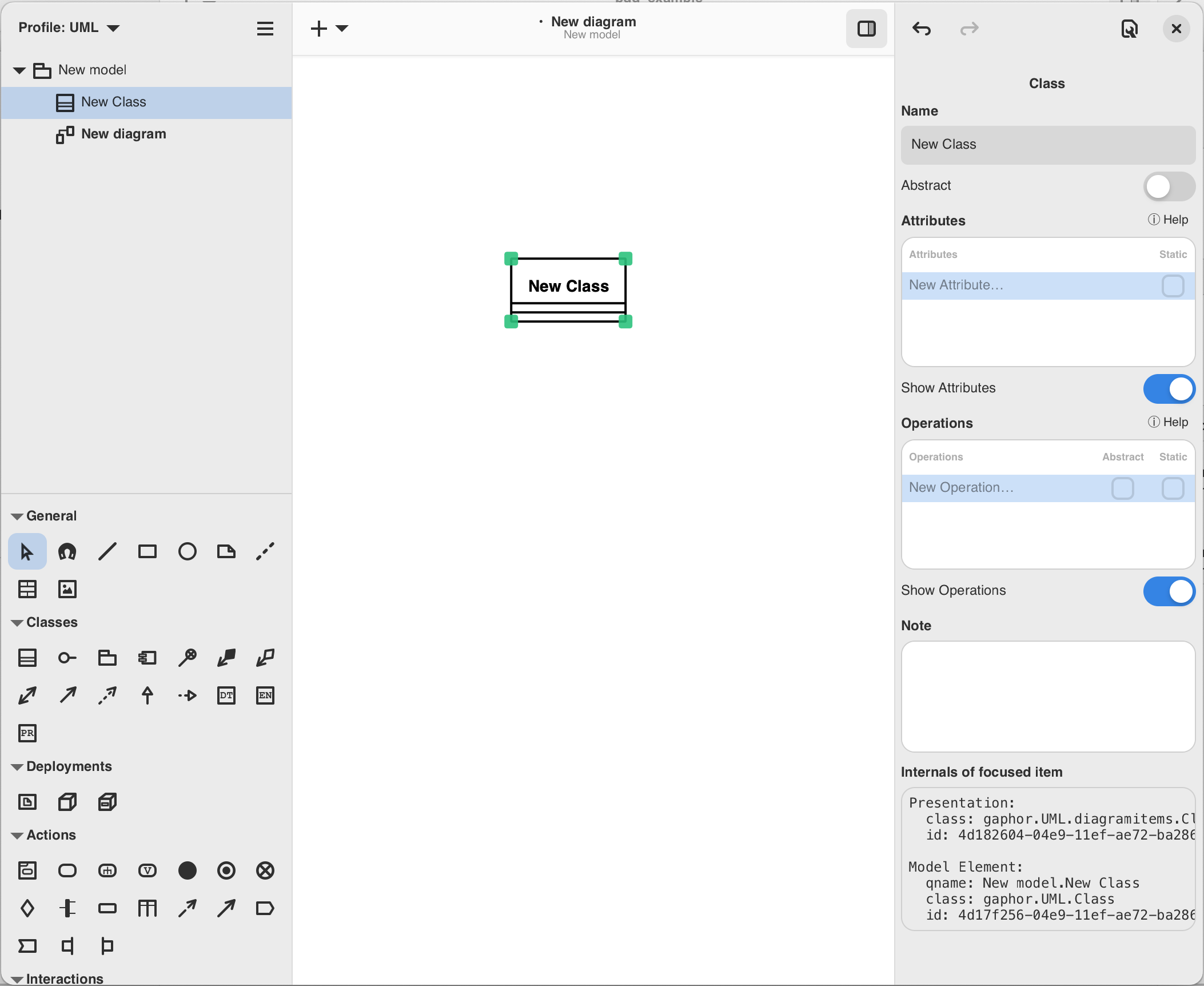
Elementi se mogu jednostavno dodati dijagramu.
Gaphor ne pretpostavlja koji se elementi trebaju postaviti na dijagram. Dijagram je dijagram. UML definira sve različite vrste dijagrama, kao što su dijagrami klasa, dijagrami komponenti, dijagrami radnji, dijagrami sekvenci. Ali Gaphor ne postavlja nikakva ograničenja.
Dodavanje veza
Dodaj jednu drugu klasu. Promijeni imena u Oblik i Krug. Definirajmo da je Krug podvrsta Oblika. To možeš učiniti odabirom jednog elementa i mijenjanjem imena u uređivaču svojstava ili dvostrukim klikom na element.
Odaberi generaliziranje ( ).
).
Move the mouse cursor over Shape. Click, hold and drag the line end over
Circle. Release the mouse button, and you should have your relationship between
Shape and Circle. You can see both ends of the relation are red, indicating
they are connected to their class.
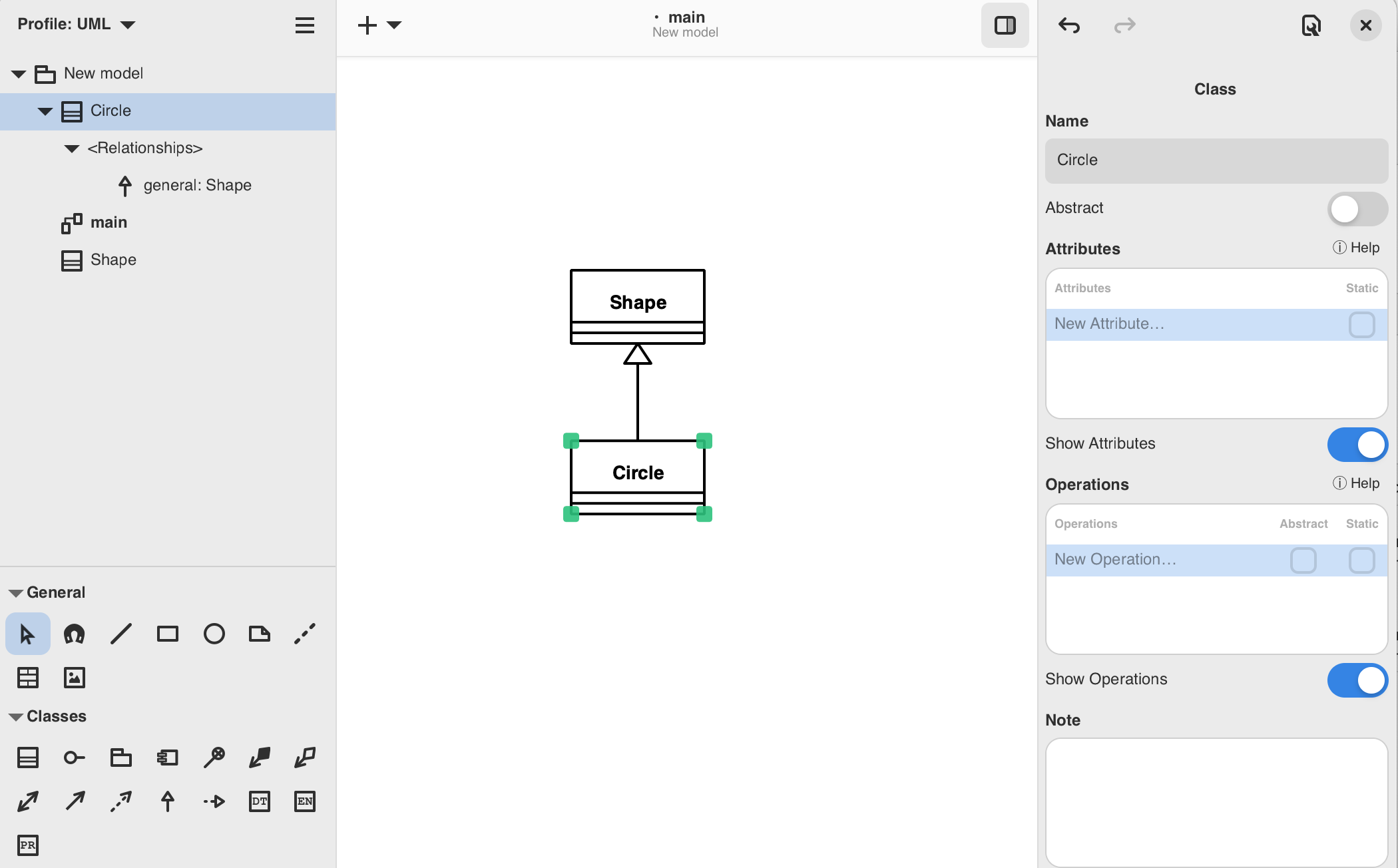
Optionally you can run the auto-layout ( → Tools → Auto Layout) to align the
elements on the diagram.
→ Tools → Auto Layout) to align the
elements on the diagram.
Stvaranje novih dijagrama
Za izradu novog dijagrama koristi „Preglednik modela”. Odaberi element koji bi trebao sadržavati novi dijagram. Za sada, odaberi Novi model. Pritisni u izborniku „Novi dijagram” ( ) u traci zaglavlja.
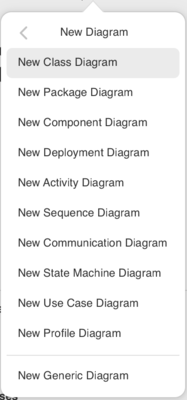
Select New Generic Diagram and a new diagram is created.
Now drag the elements from the Model Browser onto the new diagram. First the
classes Shape and Circle. Add the generalization last. Drop it somewhere
between the two classes. The relation will be created to the diagram.
Now change the name of class Circle to Ellipse. Check the other diagram. The
name has been changed there as well.
Važno
Elements in a diagram are only a representation of the elements in the underlying model. The model is what you see in the Model Browser.
Elements in the model are automatically removed when there are no more representations in any of the diagrams.
Primjeri Gaphor modela
SysML modeli
To see how a larger model comes together in Gaphor check out Gaphor Distilled which implements the DELL-SAT-77 model used as the basis for SysML Distilled one of the standard references for the SysML language.